How to Create a Training Presentation (Plus Onboarding Examples and Ideas)
By the Premium Slides team · · 8 min read
Quick answer
To create a training presentation, start from two to four things learners must be able to do afterwards. Split the content into modules of one skill each, about 10 to 15 minutes long. In every module, show the skill on simple slides, let people try it, then check that it worked. Keep detail in a handout and end with a recap.
Key takeaways
- A training presentation succeeds when people can do something new afterwards, not when they understood the slides.
- Write two to four goals that start with an action you could watch someone do.
- As a rule of thumb, keep each module to 10 to 15 minutes before learners try the skill themselves.
- Put one step on each slide and move full instructions into a handout.
- An onboarding presentation covers the welcome, company story, who is who, tools, the first week, expectations and who to ask.
- Check that training worked with a practice task or quiz, then fix the deck before the next group.
A normal presentation succeeds when people understand you. A training presentation only succeeds when people can do something afterwards that they could not do before. That one difference changes how you plan, how many words go on each slide and how much of the session you spend talking.
This guide shows how to create a training presentation step by step, how to time a one-hour session, and what to include in an onboarding presentation for new hires, with examples and ideas you can use on day one.
How do you create a training presentation?
Start from what learners must be able to do at the end, split that into short modules of one skill each, and for every module show the skill, let people try it and check that it worked. The slides support that rhythm. They are not the training on their own.
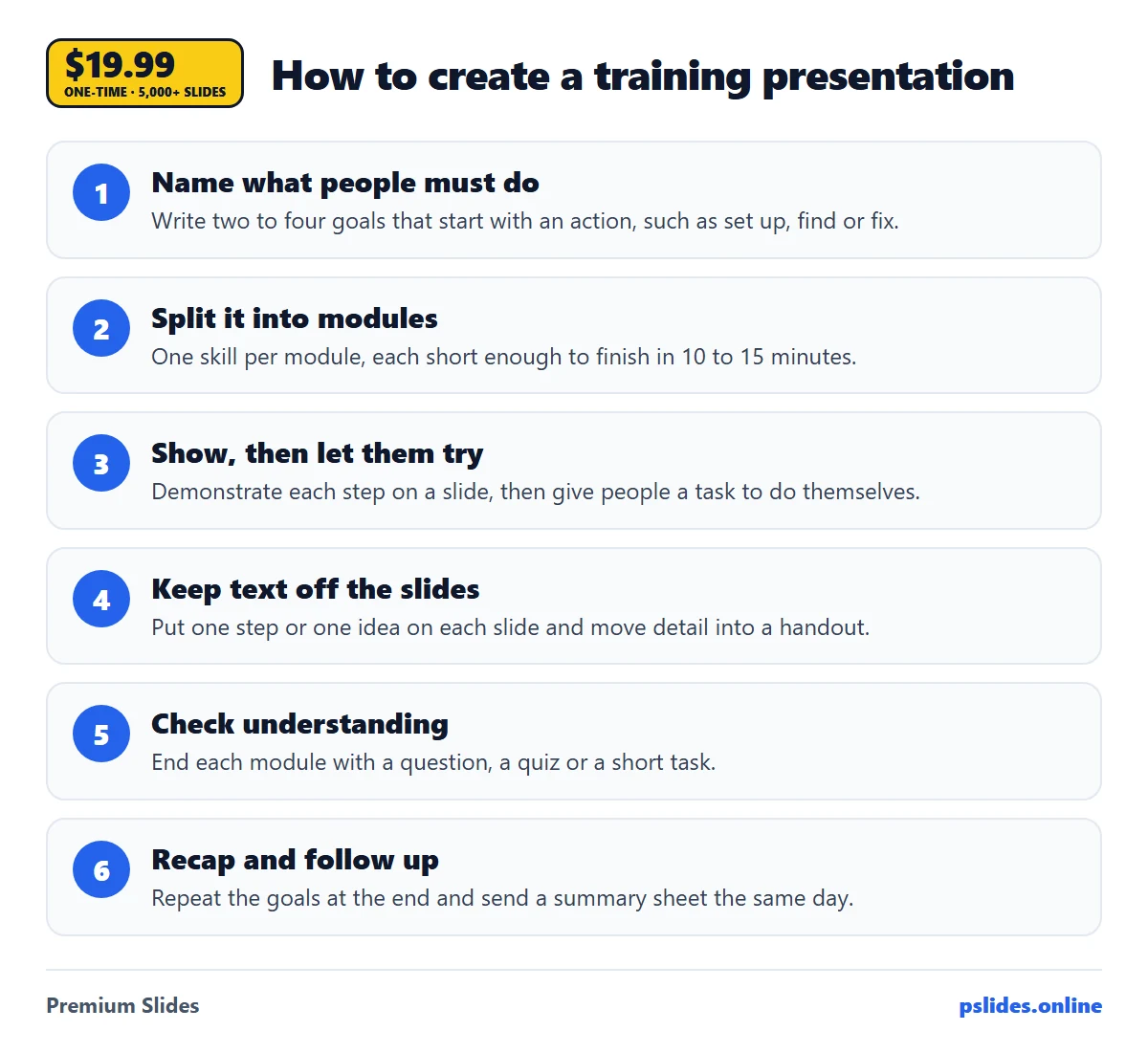
1. Name what people must be able to do
Write two to four goals that start with an action you could watch someone do: "set up a new customer account", "find a past invoice", "answer a delivery complaint". Avoid goals like "understand the system". You cannot see understanding, so you cannot check it.
2. Split the content into modules
Give each goal its own module. As a rule of thumb, keep each module to 10 to 15 minutes before people do something themselves. Long stretches of listening are where attention drops.
3. Show, then let them try
For each step, show it on a slide with a screenshot or a short demo. Then stop and give people a task. Five minutes of doing teaches more than fifteen minutes of watching.
4. Keep text off the slides
Put one step or one idea on each slide. The full instructions belong in a handout or a short guide that people keep. If a slide holds a paragraph, learners read it instead of listening to you.
5. Check understanding
End each module with a question, a short quiz or a task with a right answer. If most people get it wrong, the module needs fixing, not the learners.
6. Recap and follow up
Repeat the goals on the last slide, say where to get help and send the handout the same day.
How should a one-hour training session be structured?
Split the hour into short blocks: a five-minute opening, two modules of about 15 minutes, a practice task, a quick check and a close. Every block ends with people doing something, not just listening.
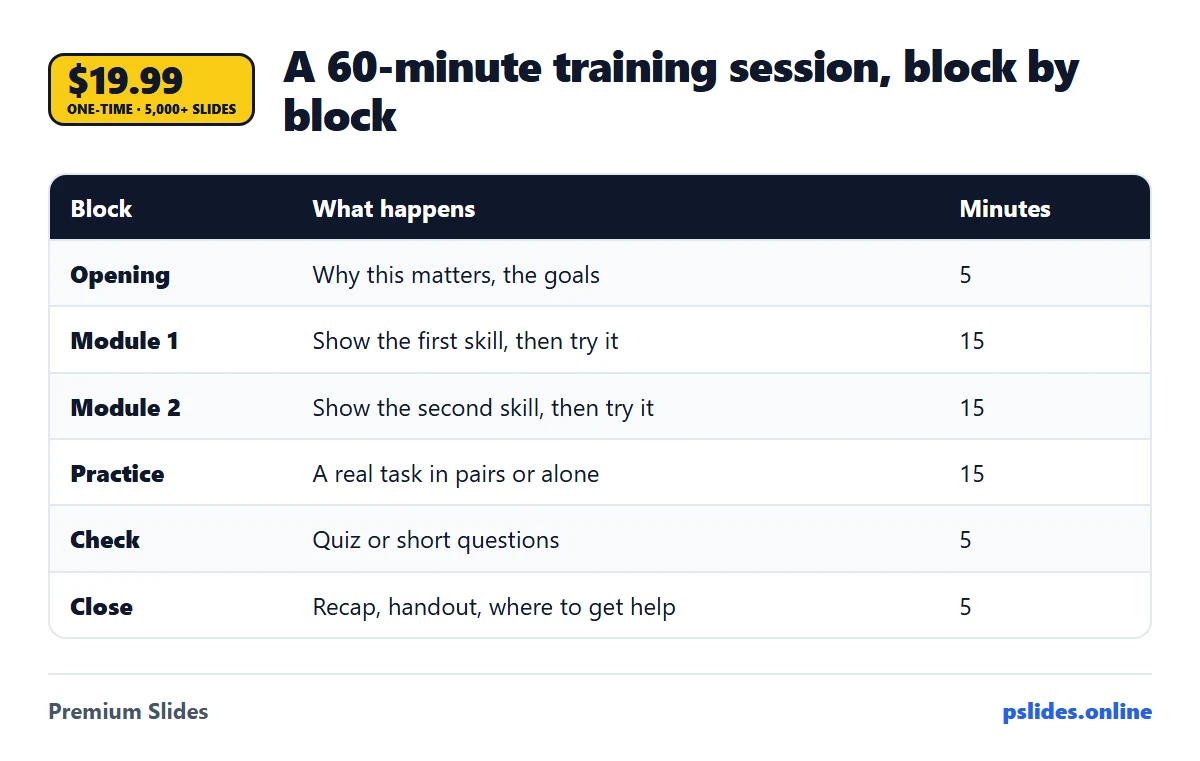
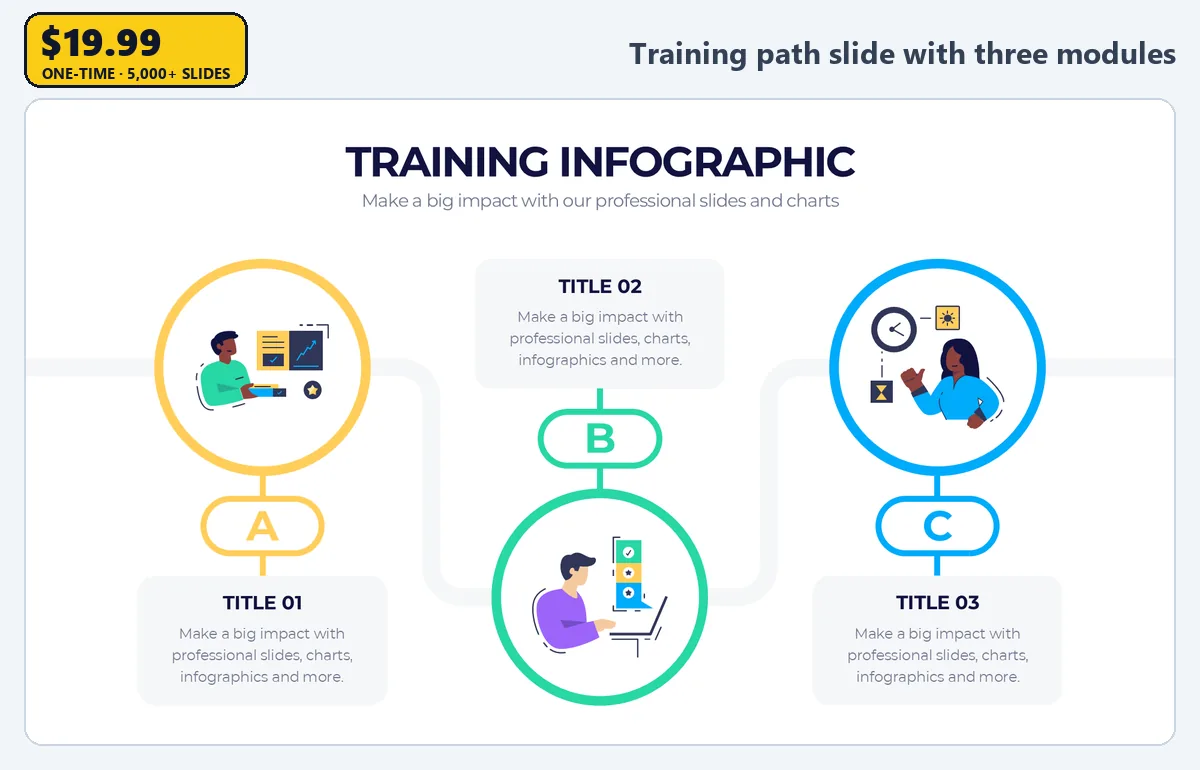
Show the plan as a path at the start of the session. People relax when they can see how long the theory lasts and when they get to try things. A three-stop path also works as a progress marker: show it again at the start of each module with the current stop highlighted.
For slot lengths other than one hour, our guide on how many slides a presentation needs gives the numbers. In training, plan fewer slides than in a normal talk, because a good part of the time goes into exercises.
What makes training slides easy to learn from?
Training slides work best when each one shows a single step, uses real screenshots or pictures, and leaves the full detail to a handout. The goal is that someone can glance at the slide during an exercise and know exactly where they are.
- One step per slide. "Step 3: click Save as draft" is easier to follow than a slide with all eight steps.
- Real screenshots with one highlight. In PowerPoint for Windows, Insert > Screenshot captures a window you have open. Circle or box the button people need to click.
- Short screen recordings. Insert > Screen Recording in PowerPoint for Windows records a short demo straight onto a slide. Keep it under a minute.
- Reveal steps one at a time. Add an entrance effect from the Animations tab so each step appears when you reach it. Our guide on PowerPoint animation without overdoing it explains how to keep this calm.
- A goals slide near the start. Three goals in three boxes, written as actions.
- Large text and plenty of space. People will look at the slides from across a room or on a small laptop screen.
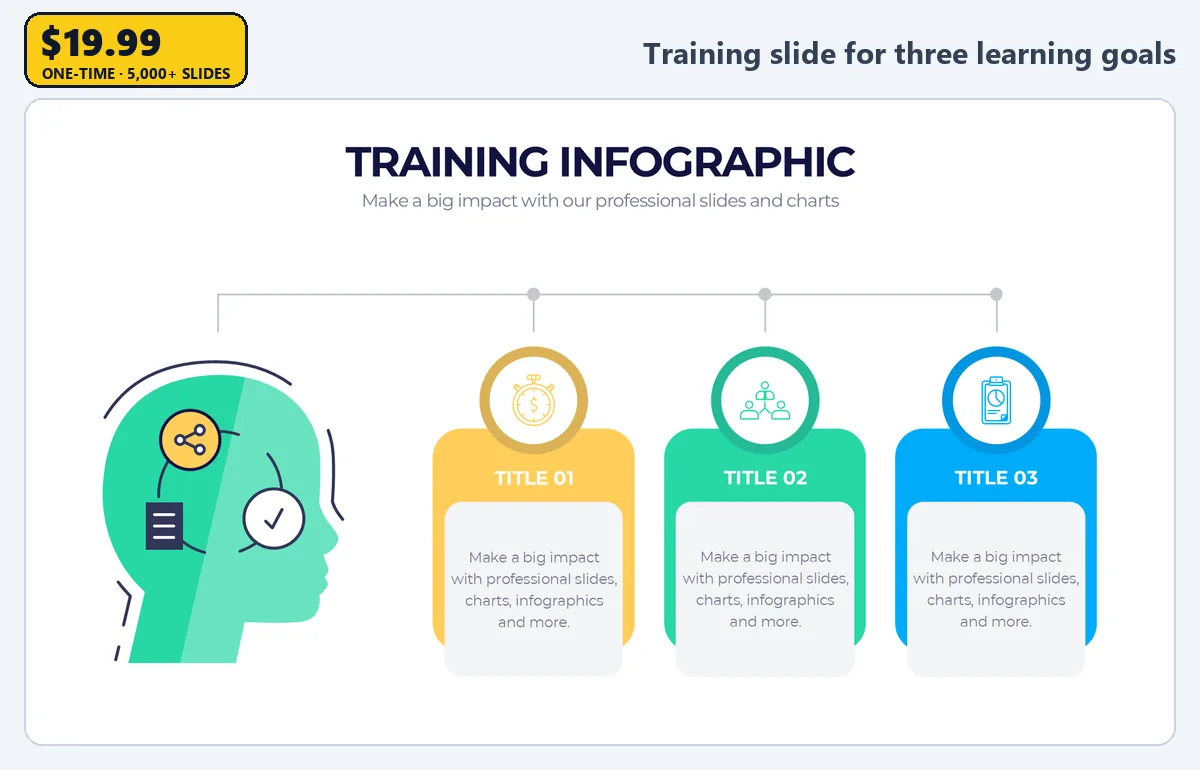
Icons, progress bars and simple diagrams also help people remember steps. See how to make an infographic in PowerPoint for ways to turn a list into a visual, and the training templates for ready layouts.
What to include in an onboarding presentation
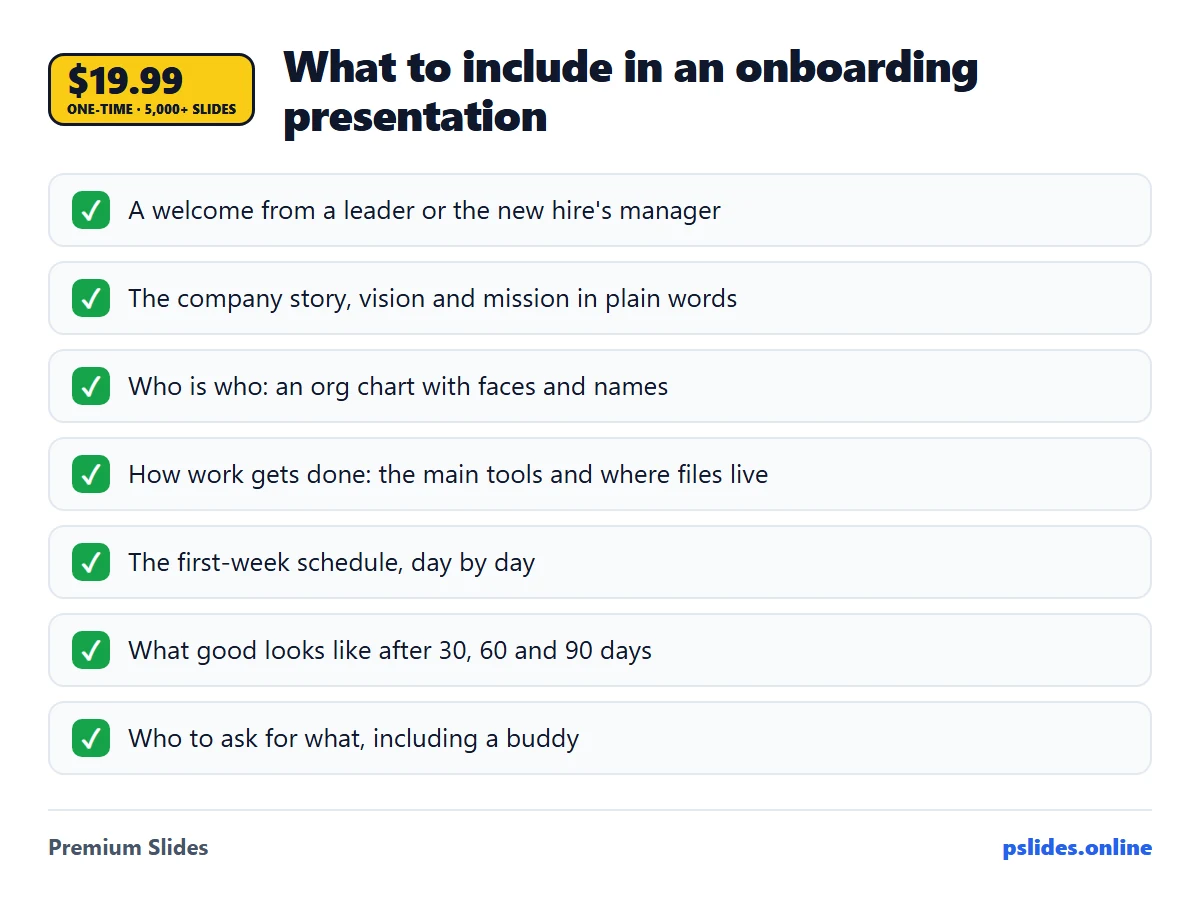
An onboarding presentation should cover a welcome, the company story and mission, who is who, how work gets done, the first-week schedule, what success looks like and who to ask for help. It is a special kind of training: the goal is that a new person feels oriented and knows their next step, not that they memorise everything.
Keep the company story short. One slide for the vision and mission, written the way people actually talk, works better than a page of values that nobody can repeat.

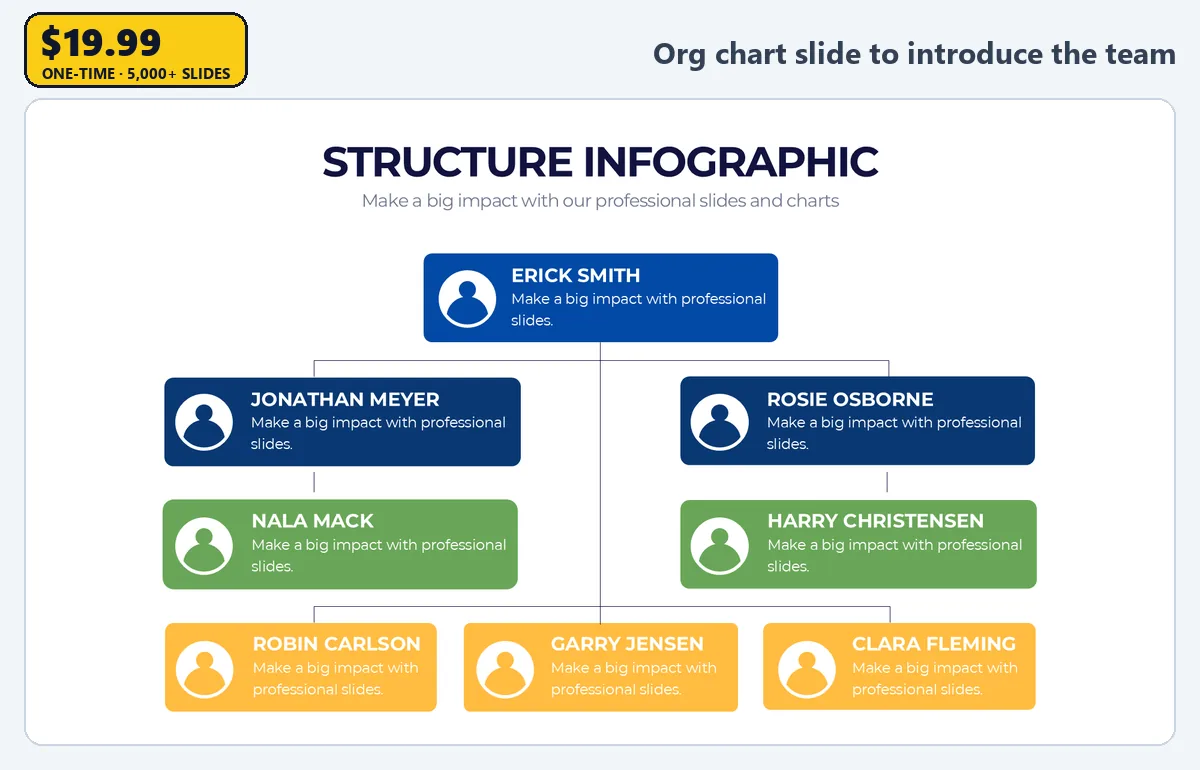
The "who is who" part matters more than it seems. A new hire meets a lot of people in the first week. An org chart with faces and names lets them place each person later. The organogram templates have team and company layouts, and the vision and mission templates cover the company story.
End with clear expectations. A short slide on what good looks like after 30, 60 and 90 days gives the new person a target. Our guide to the 30-60-90 day plan presentation shows how to lay it out.
New hire onboarding presentation examples: how does it change by company?
The core stays the same, but the size, format and length change with the company. The three examples below are made up to show the differences.
| Example company | Format | What the deck focuses on |
|---|---|---|
| A 20-person design studio | One 45-minute session with the founder | The studio's story, how projects run, the tools, and a "meet the team" photo grid |
| A chain of 30 retail stores | A short deck shown in each store on day one | Safety, the till system, the dress code and the store manager's contact |
| A fully remote software company | Five short video calls in week one | Where to find things online, meeting habits, time zones and a buddy for questions |
Notice what the employee onboarding presentation examples share. Each answers the same questions a new person has: what does this company do, who do I work with, what do I do this week and who do I ask. Each also stays short. A long day-one deck mostly teaches new hires that slides are boring.
Split onboarding over the first weeks instead. Day one covers the welcome, the people and the schedule. Later sessions cover tools and processes, when the new person has a real task and a reason to listen.
Onboarding presentation ideas that make day one better
The best onboarding ideas turn a one-way talk into small moments where the new hire does, asks or meets something.
- A "first win" slide. Name one small task the new hire can finish this week, so they end week one having done something real.
- A glossary slide. Every company has its own acronyms and project names. List the ten most common ones.
- A "who to ask" map. One slide that pairs common questions with a name: payroll, laptop problems, holiday requests.
- A short video from a leader. One or two minutes, recorded once, works better than a welcome letter read aloud.
- "What we wish we had known." Ask recent hires for three tips and put them on a slide in their own words.
- A quick quiz at the end. Five light questions about the company. It checks understanding and makes the session feel less formal.
How do you know the training worked?
Check whether people can do the task, not whether they liked the session. A feedback form tells you how the session felt. A practice task tells you whether it worked.
- During the session: watch the exercises. Where people get stuck shows you which slide needs work.
- At the end: a short quiz or a task with a clear right answer.
- A week later: ask the learners, or their managers, whether they are using the skill. If not, ask what got in the way.
Use what you learn to fix the deck before the next group. Good training decks are rarely good the first time. They get good after three or four rounds of small fixes.
How do you build training and onboarding slides faster?
The hard part of training is the design of the session: the goals, the exercises and the checks. Drawing paths, goal cards and org charts from empty slides should not take longer than that. For layout basics, see how to make PowerPoint look professional.
Premium Slides is one bundle of 5,000+ animated, fully editable slides for PowerPoint, Google Slides and Keynote. It includes training, organogram and vision and mission layouts, so both your training sessions and your onboarding deck start from finished designs that share one style. The bundle costs $19.99 as a one-time payment, with instant download and lifetime access. You can get the bundle here or browse every template category first.
Frequently asked questions
How long should a training presentation be?
Most sessions work well at 45 to 90 minutes. Within that, keep each module to about 10 to 15 minutes before learners do an exercise, and plan fewer slides than for a normal talk of the same length.
What should be included in an onboarding presentation?
A welcome, the company story and mission, an org chart of who is who, the main tools, the first-week schedule, what success looks like after 30, 60 and 90 days, and who to ask for help.
How many slides should a training presentation have?
Fewer than a normal talk of the same length, because part of the time goes into exercises. A one-hour session often needs about 15 to 25 simple slides, with one step or idea on each.
How do you make a training presentation interactive?
After each short module, give people a task to do, a question to answer or a short quiz. Pair work and real examples from their own job keep attention better than more slides.
Should onboarding happen in one session?
Usually not. Cover the welcome, the people and the schedule on day one, then hold short sessions on tools and processes over the first weeks, when new hires have real tasks.