How to Animate in PowerPoint Without Overdoing It: Text, Timing and Ideas
By the Premium Slides team · · 8 min read
Quick answer
To animate in PowerPoint, select an object, open the Animations tab, pick an effect such as Fade and set Start to On Click in the Timing group. Use Effect Options > By Paragraph to reveal text line by line, and the Effect tab's Animate text setting for one letter at a time. Keep to one or two short effects per deck.
Key takeaways
- Select an object, choose an effect on the Animations tab and set Start in the Timing group.
- Use On Click for anything you talk about, so you control the pace.
- By Paragraph reveals text line by line, and lines are paragraphs that end with Enter.
- Animate text By letter only for a short word or title, never a paragraph.
- Give every animation a job: order, focus or change, and delete the rest.
- For students, reveal answers, labels and numbers one click at a time.
Animation has a bad name because of the decks that overuse it: titles that spin in, bullets that bounce, a whoosh on every click. Used with a plan, though, animation is one of the best tools in PowerPoint. It decides what the audience looks at and when, so they listen to you instead of reading ahead.
This guide shows how to animate in PowerPoint with purpose: the four effect types, how to animate text on click, line by line and one letter at a time, and animation ideas for students that make a class presentation easier to follow.
How do you animate in PowerPoint?
Select an object, open the Animations tab, pick an effect from the gallery, then set when it starts in the Timing group. That is the whole basic process, and it works for text boxes, shapes, pictures, icons, charts and SmartArt.
The Animations tab has four groups you will use all the time:
- Animation gallery. The effects themselves. Click the arrow at the side to see them all.
- Effect Options. The direction or sequence of the chosen effect, such as From Left or By Paragraph.
- Advanced Animation. Add Animation (to put a second effect on the same object), Animation Pane, Trigger and Animation Painter.
- Timing. Start, Duration and Delay.
Effects come in four families, and each has a color in the gallery so you can tell them apart:

Most decks need only entrance effects. Emphasis is useful for one key number. Exit and motion paths are for special cases, such as clearing a busy slide or showing a route on a map.
What do On Click, With Previous and After Previous mean?
They decide when an animation starts. On Click waits for your click. With Previous starts at the same time as the animation before it. After Previous starts when the one before it ends.
Use On Click for anything you will talk about, so you control the pace. Use With Previous to make two objects appear together, such as an icon and its label. Use After Previous for a short automatic build, such as the arms of a diagram drawing one after another.
Two more settings matter. Duration is how long the effect takes; as a rule of thumb, around half a second feels quick and calm. Delay waits before the effect starts, which is handy for spacing out After Previous effects.
Open Animations > Animation Pane to see every effect on the slide in order. Drag items to reorder them, or use the up and down arrows at the top of the pane. Click Play From to preview.
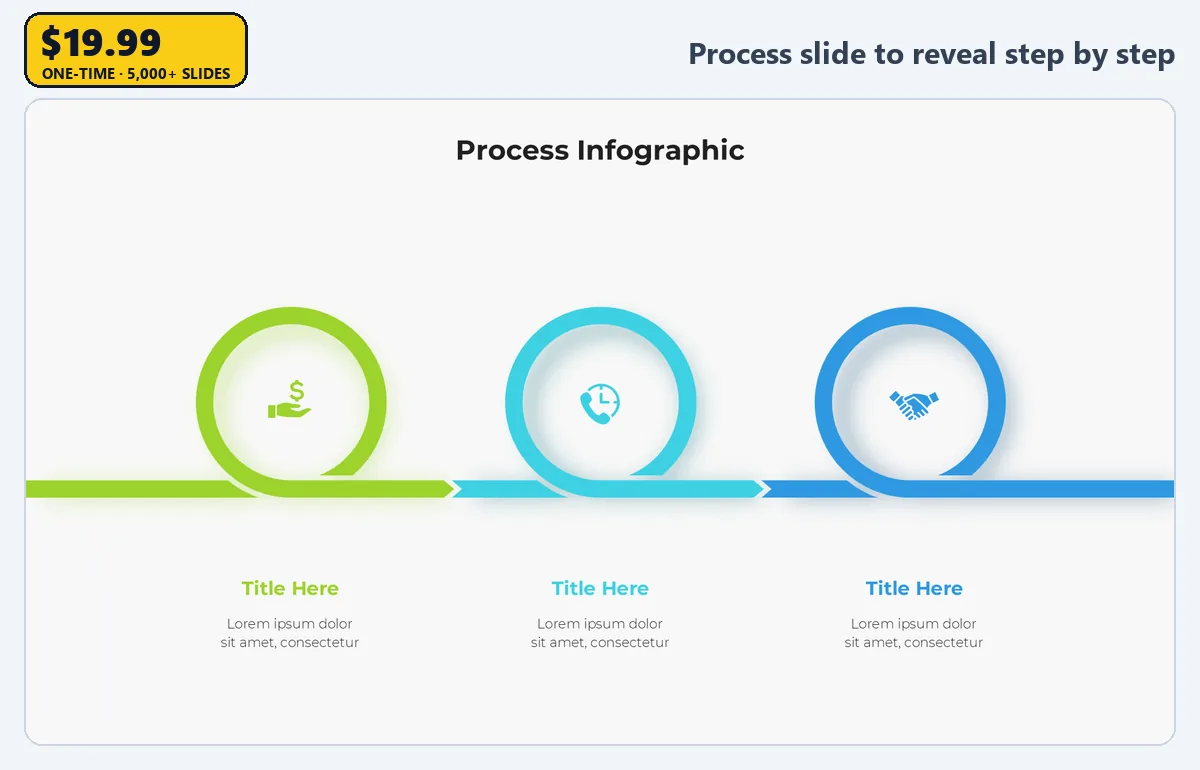
Process slides like this one are where animation earns its place. Group each circle with its title, give the groups a Wipe From Left on click, and the audience follows the steps in your order. Our guide on making an infographic in PowerPoint covers the same idea for diagrams.
How do you animate text in PowerPoint on click?
Select the text box, choose an entrance effect such as Fade, and set Start to On Click. Each click on the slide then reveals the next part of the text.
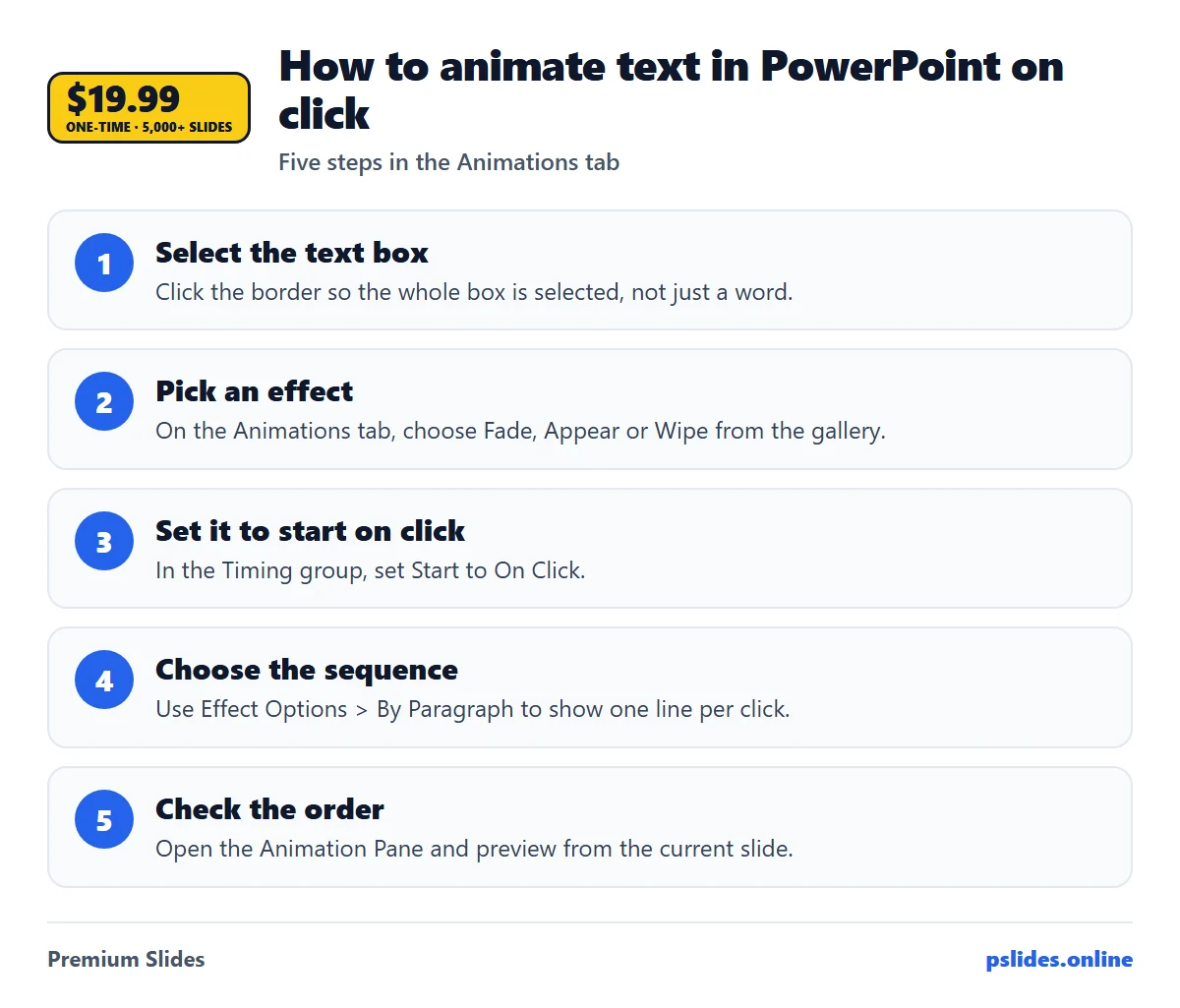
- Click the border of the text box so the whole box is selected.
- On the Animations tab, choose Fade, Appear or Wipe.
- In the Timing group, set Start to On Click.
- Open Effect Options and choose By Paragraph if you want one line per click, or As One Object for the whole box at once.
- Open the Animation Pane and check the order.
Want the text to appear when you click a specific object instead of anywhere on the slide? Select the text, go to Animations > Trigger > On Click of and choose the object. This is how you build a quiz where clicking a question box reveals its answer.
How do you animate text in PowerPoint line by line?
Apply an entrance effect to the text box and set Effect Options to By Paragraph. Each paragraph, which means each line that ends with Enter, then appears on its own click.
This is the classic bullet build. A few details make it work well:
- Lines are paragraphs. PowerPoint animates paragraphs, not visual lines. If one long bullet wraps onto two lines, both lines appear together. Press Enter where you want a break.
- Sub-bullets. For more control, click the small arrow in the corner of the Animation group to open the effect dialog. On the Text Animation tab, Group text lets you choose By 1st Level Paragraphs or deeper levels.
- Dim what you have covered. In the same dialog, on the Effect tab, set After animation to a light grey. Earlier points fade back and the current one stands out.
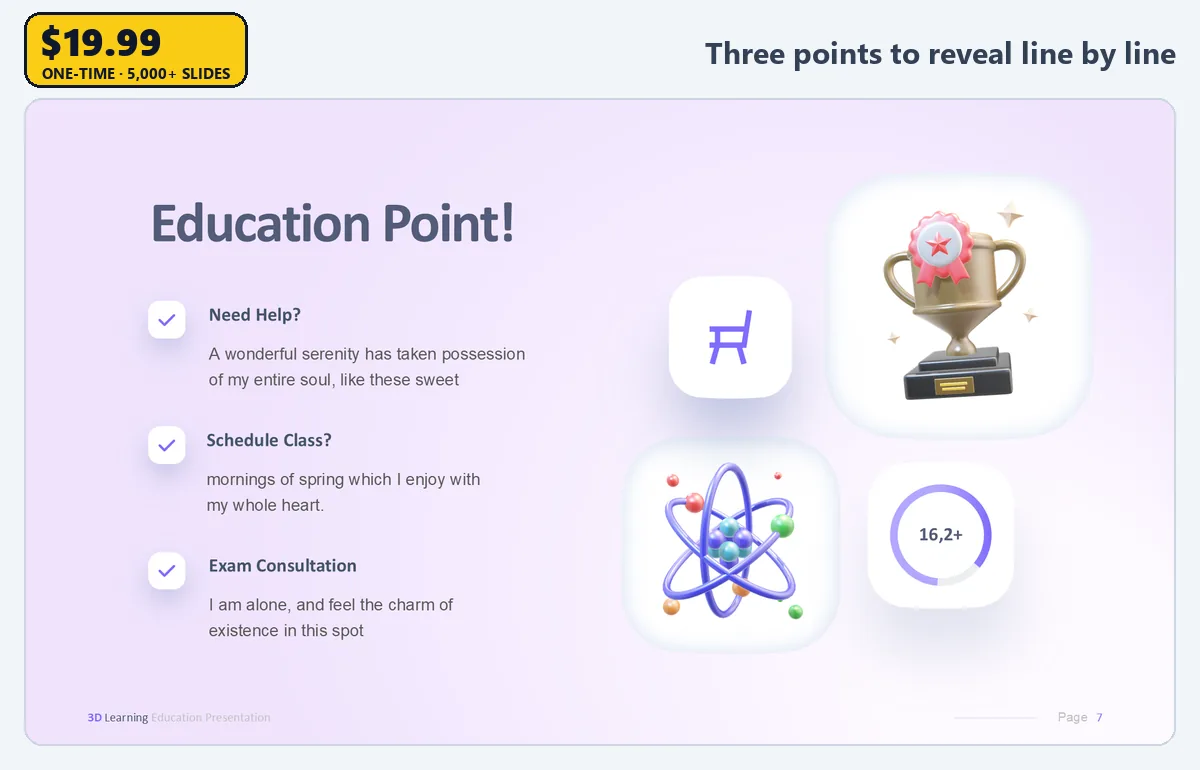
If each point has an icon, as on the slide above, animate the icon and its text as one group. Select both, press Ctrl+G to group them, then apply the effect to the group.
How do you animate text in PowerPoint one letter at a time?
Apply an entrance effect, open the effect dialog, and on the Effect tab set Animate text to By letter. You can also choose By word.
- Select the text box and choose an effect such as Appear or Fade.
- In the Animation Pane, right-click the effect and choose Effect Options.
- On the Effect tab, set Animate text to By letter.
- Adjust the % delay between letters. A lower number types faster.
Appear with By letter gives a typewriter effect. Use it for one short word or a title, never for a paragraph. Reading speed drops when letters arrive one at a time, and the audience starts waiting instead of listening.
How do you avoid overdoing animation?
Give every animation a job: show order, direct focus or show change. If an effect does none of those, delete it.
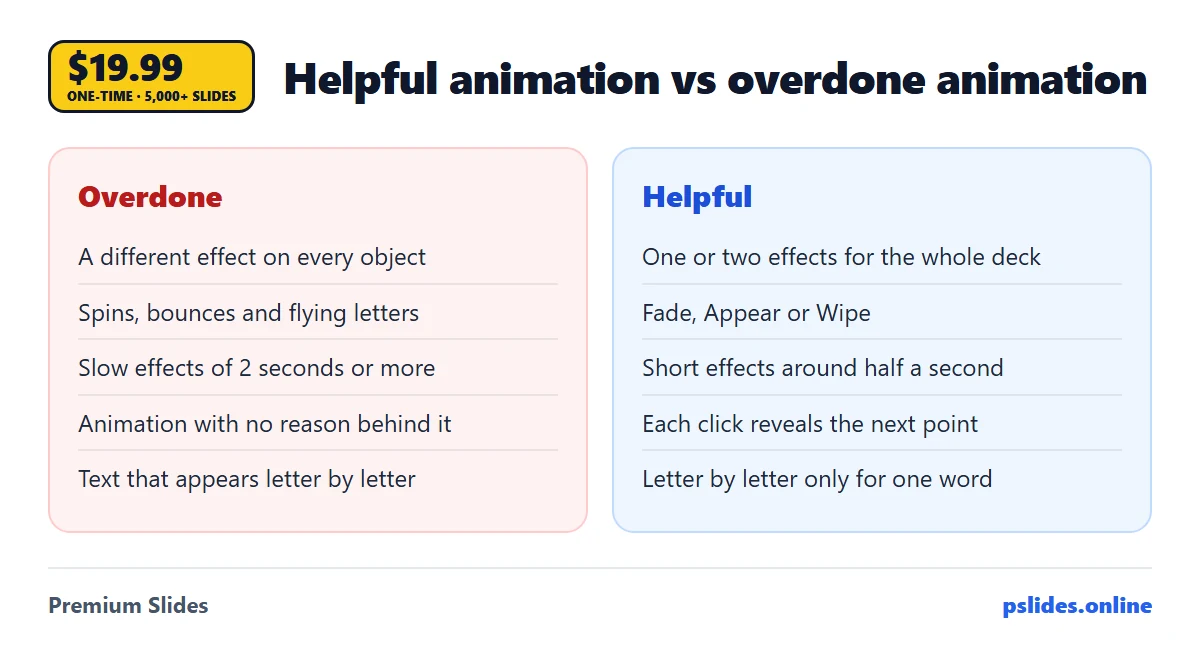
Some simple rules keep a deck calm:
- Pick one or two effects for the whole deck. Fade for text and Wipe for diagrams is enough for most talks.
- Keep effects short. Around half a second is a good rule of thumb.
- Copy, do not rebuild. Use Animation Painter in the Advanced Animation group to copy an effect from one object to another.
- Move between slides with care. One gentle transition such as Fade, or the Morph transition for real motion between two slides.
What are good PowerPoint animation ideas for students?
Use animation to make the class think before you give the answer: reveal steps, numbers, labels and answers one at a time. Here are ideas that work for class presentations and teaching slides.
- Question, then answer. Show a question, let the class guess, then reveal the answer on click.
- Click-to-reveal quiz. Use a Trigger so clicking each option shows "Correct" or "Try again".
- Label a diagram. Show a picture of a cell, a volcano or an engine, then add each label on click.
- Build a timeline. Bring in one event at a time with Wipe From Left.
- Reveal key numbers. Show statistic cards one by one, then pause on the biggest.
- Before and after. Fade a second picture over the first to show a change.

Keep the rest of the slide simple, so the animation is the only thing that changes. For topic and format ideas, see our list of presentation ideas for students and teachers.

Can you animate in Google Slides and Keynote?
Yes, with fewer options. In Google Slides, select an object and go to Insert > Animation. The Motion panel lets you pick an effect, choose On click, With previous or After previous, and tick By paragraph for line-by-line text. Google Slides has no letter-by-letter option.
In Keynote, select an object, open the Animate sidebar and choose Build In, Action or Build Out, which match entrance, emphasis and exit. For text, the Delivery menu offers options such as by paragraph.

How do you get animated slides without building every effect?
Setting up a clean build takes time: grouping each icon with its label, choosing the effect, ordering twenty items in the Animation Pane and testing the clicks. A deck where that is already done lets you focus on what you will say.
Premium Slides is a bundle of 5,000+ animated, fully editable slides for PowerPoint, Google Slides and Keynote. It includes animated infographic slides for processes and cycles, 3D learning slides and education templates for class presentations, all with the animation set up and editable. The whole bundle costs $19.99 once, with instant download and lifetime access. You can get the bundle here or browse every template category first. For design rules that keep animated slides tidy, read how to make PowerPoint look professional.
Frequently asked questions
How do you animate in PowerPoint?
Select an object, open the Animations tab and choose an effect from the gallery. Then set Start, Duration and Delay in the Timing group and check the order in the Animation Pane.
How do you make text appear on click in PowerPoint?
Apply an entrance effect such as Fade to the text box and set Start to On Click. To show it when a specific object is clicked, use Animations > Trigger > On Click of.
How do you animate bullet points one at a time?
Apply an entrance effect to the text box and choose Effect Options > By Paragraph. Each bullet then appears on its own click.
How do you animate text letter by letter?
Open the effect's Effect Options dialog from the Animation Pane and set Animate text to By letter on the Effect tab. Adjust the delay between letters to change the speed.
How many animations should a presentation have?
There is no fixed number, but use one or two effect types for the whole deck and animate only what shows order, focus or change. Many slides need no animation at all.
What is the difference between animations and transitions?
Animations move objects within a slide. Transitions play as you move from one slide to the next, such as Fade or Morph.