Morph Transition in PowerPoint: What It Is and How to Use It
By the Premium Slides team · · 8 min read
Quick answer
Morph is a PowerPoint transition that animates objects between two slides. Duplicate a slide, move, resize or recolor objects on the copy, then select the second slide and choose Transitions > Morph. It is available in Microsoft 365, PowerPoint 2019 and newer and PowerPoint for the web, but not in PowerPoint 2016 bought without a subscription.
Key takeaways
- Morph animates the change between two slides by matching objects that appear on both.
- Duplicate the slide and edit the copy, because Morph matches copies of the same object.
- Apply Morph to the second slide, the one you are moving to.
- Rename objects with a !! prefix in the Selection Pane to force a match.
- PowerPoint 2016 bought once cannot add Morph, so test the deck on the presenting computer.
- Use Morph to move between views and classic animations to reveal items on one slide.
You have seen it in a keynote: a circle glides across the screen, grows into a photo and the title slides into a corner, all without a cut. It looks like video editing. In fact it is one transition in PowerPoint, and it takes about a minute to set up once you understand how it thinks.
This guide explains the Morph transition in PowerPoint: what it does, which versions have it, how to use it step by step, and the ideas and fixes that make it work every time.
What is Morph transition in PowerPoint?
Morph is a slide transition that animates the change between two slides. If the same object appears on both slides in a different position, size, color or rotation, Morph moves it smoothly from one state to the other.
Most transitions treat a slide as a picture: Fade blends one picture into the next, Push slides one picture away. Morph looks inside the slides instead. It finds objects that match, works out how each one changed, and animates that change. Objects that exist only on the first slide fade out, and objects that exist only on the second fade in.
That makes Morph a way to animate without the animation pane. You design the start and the end, and PowerPoint draws the motion in between.
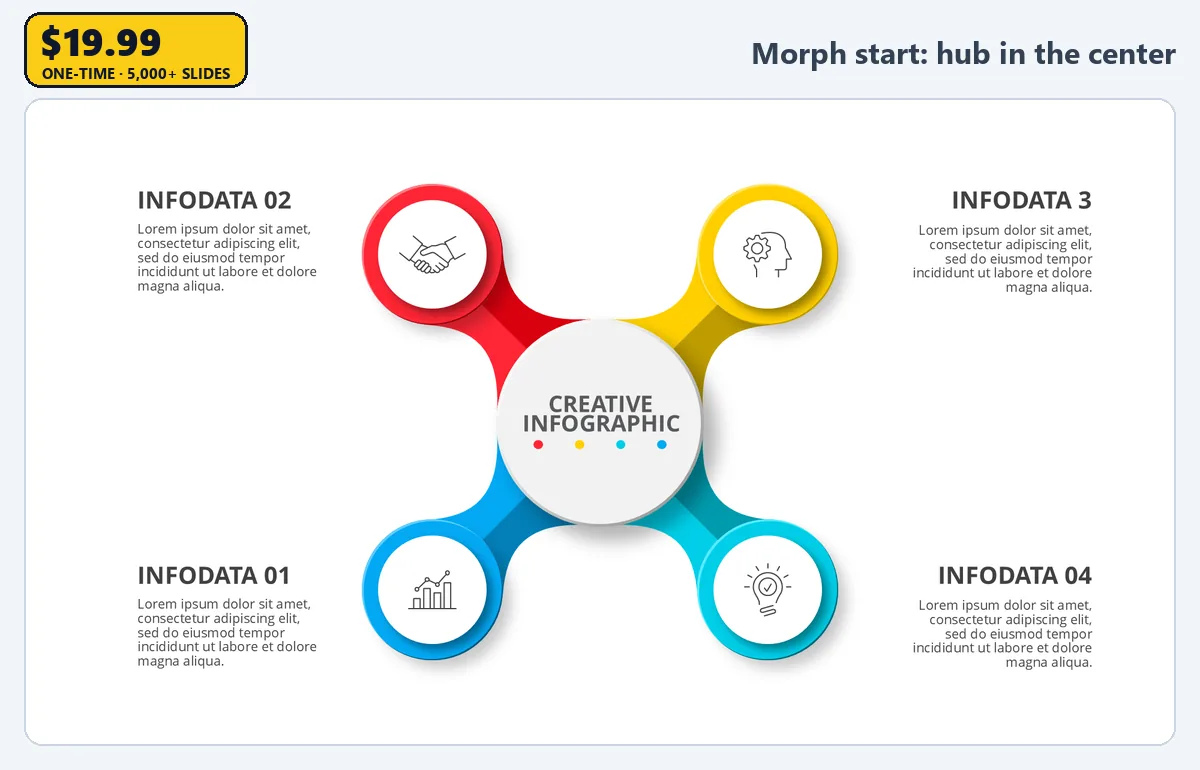
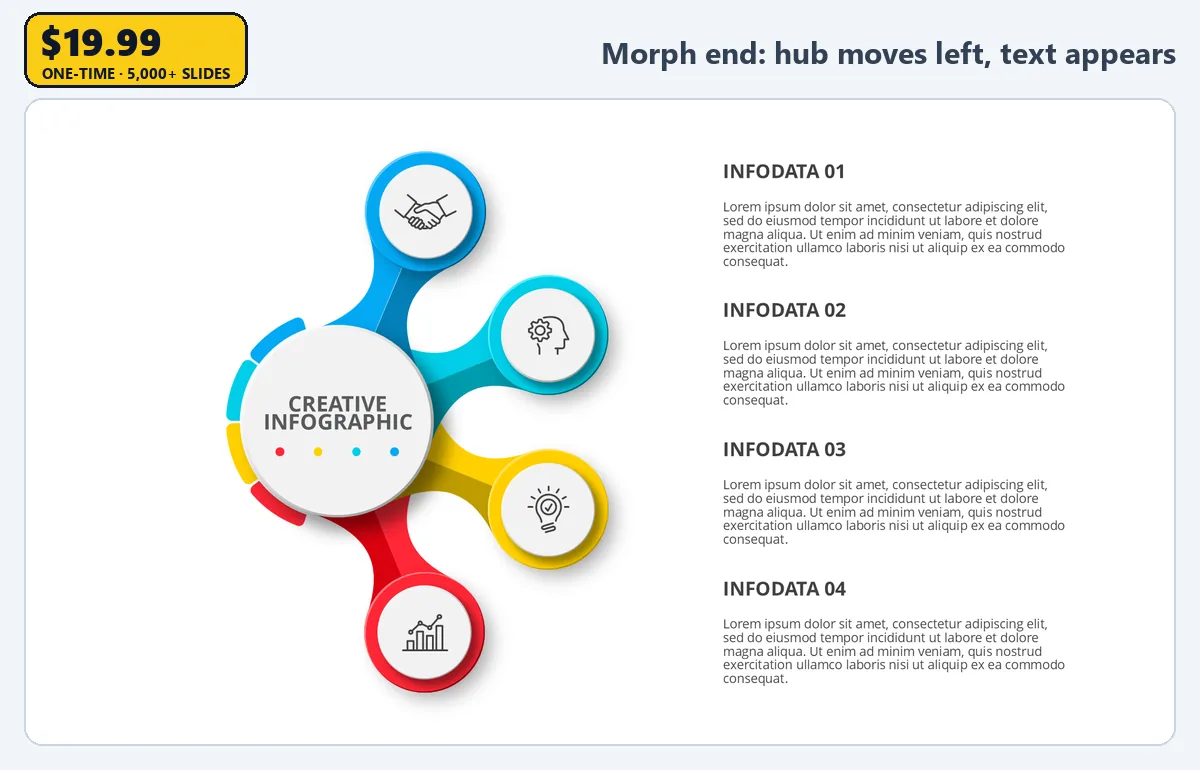
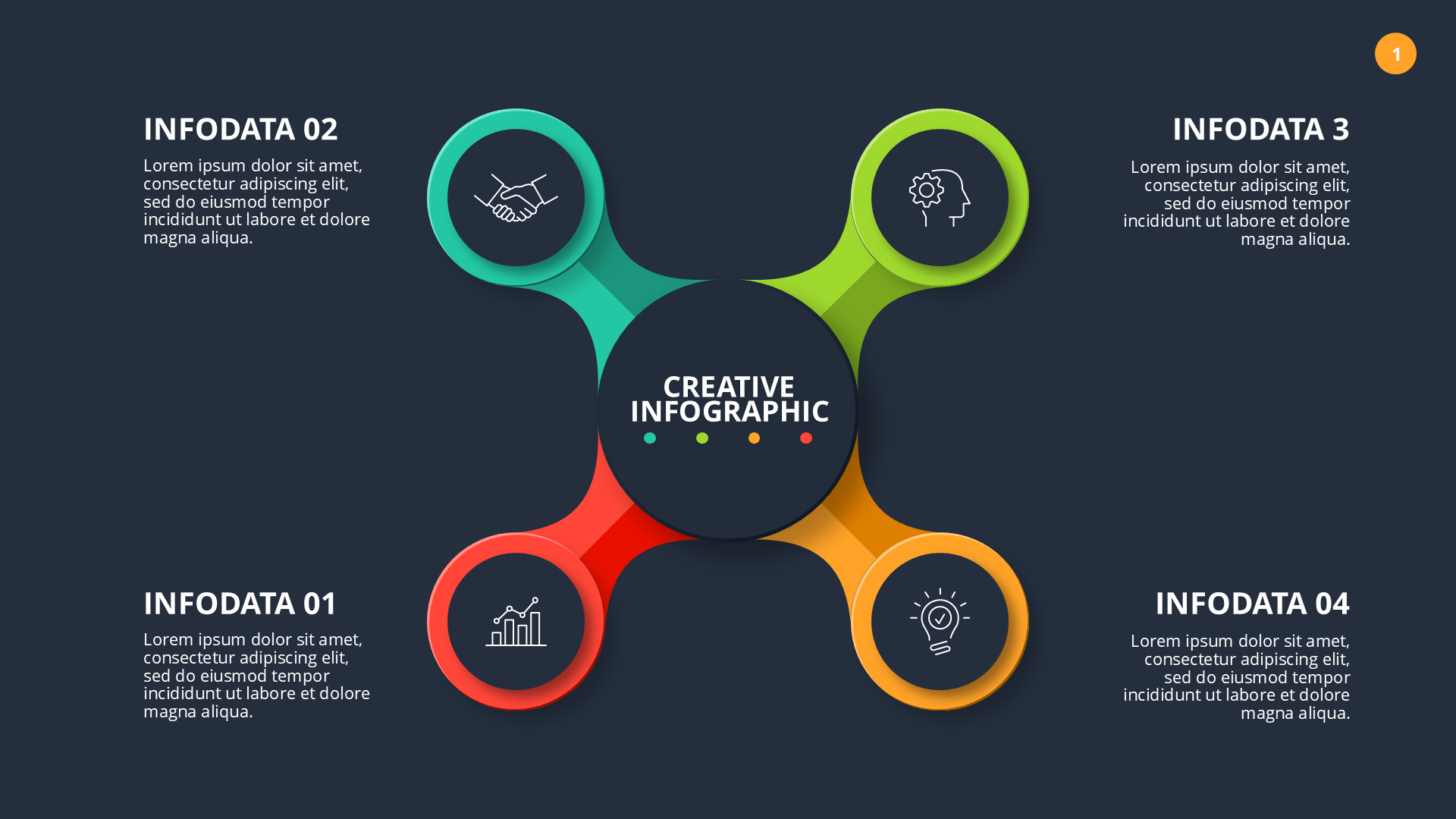
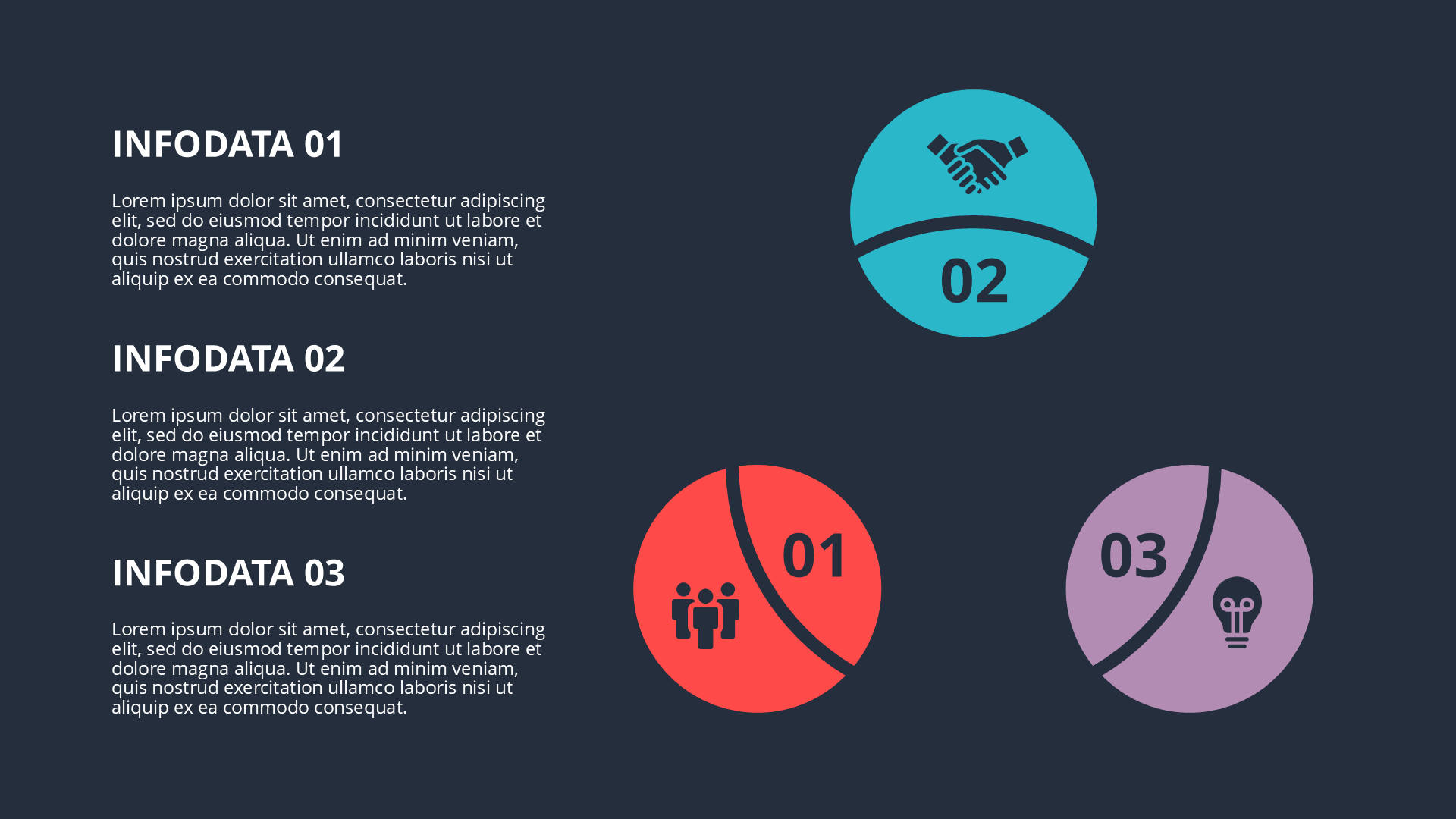
The two slides above are a good pair for Morph. The hub and the four icon circles exist on both, so they move. The text blocks change place and style, so they cross-fade. The result feels like one diagram reorganizing itself while you talk.
Is Morph transition available in PowerPoint 2016?
Only in the subscription version. PowerPoint 2016 that came with an Office 365 subscription received Morph in an update. PowerPoint 2016 bought once, with a single payment and no subscription, does not have it in the Transitions gallery.
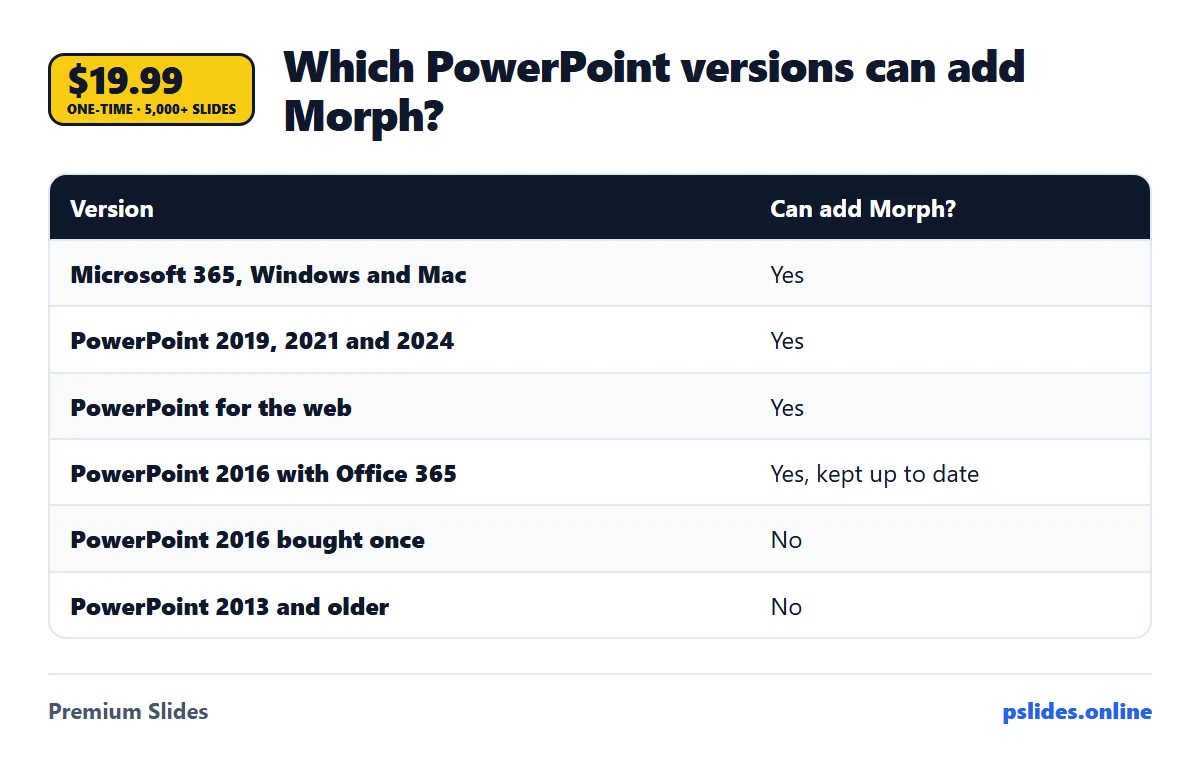
Here is the full picture:
| Version | Can you add Morph? |
|---|---|
| Microsoft 365 for Windows and Mac | Yes |
| PowerPoint 2019, 2021 and 2024 | Yes |
| PowerPoint for the web | Yes |
| PowerPoint 2016 with an Office 365 subscription | Yes, if it is kept up to date |
| PowerPoint 2016 bought once | No |
| PowerPoint 2013 and older | No |
To check your version, go to File > Account and look under Product Information. If you will present on someone else's computer, test the deck there. A version that cannot play Morph shows a simpler transition, and your carefully staged motion turns into a jump.
Google Slides has no Morph transition. Keynote has a similar effect called Magic Move, which also matches objects between two slides.
How to use PowerPoint Morph transition, step by step
Build a slide, duplicate it, change the objects on the copy, then apply Transitions > Morph to the second slide. The duplicate step is the key: Morph matches objects best when they are copies of each other.
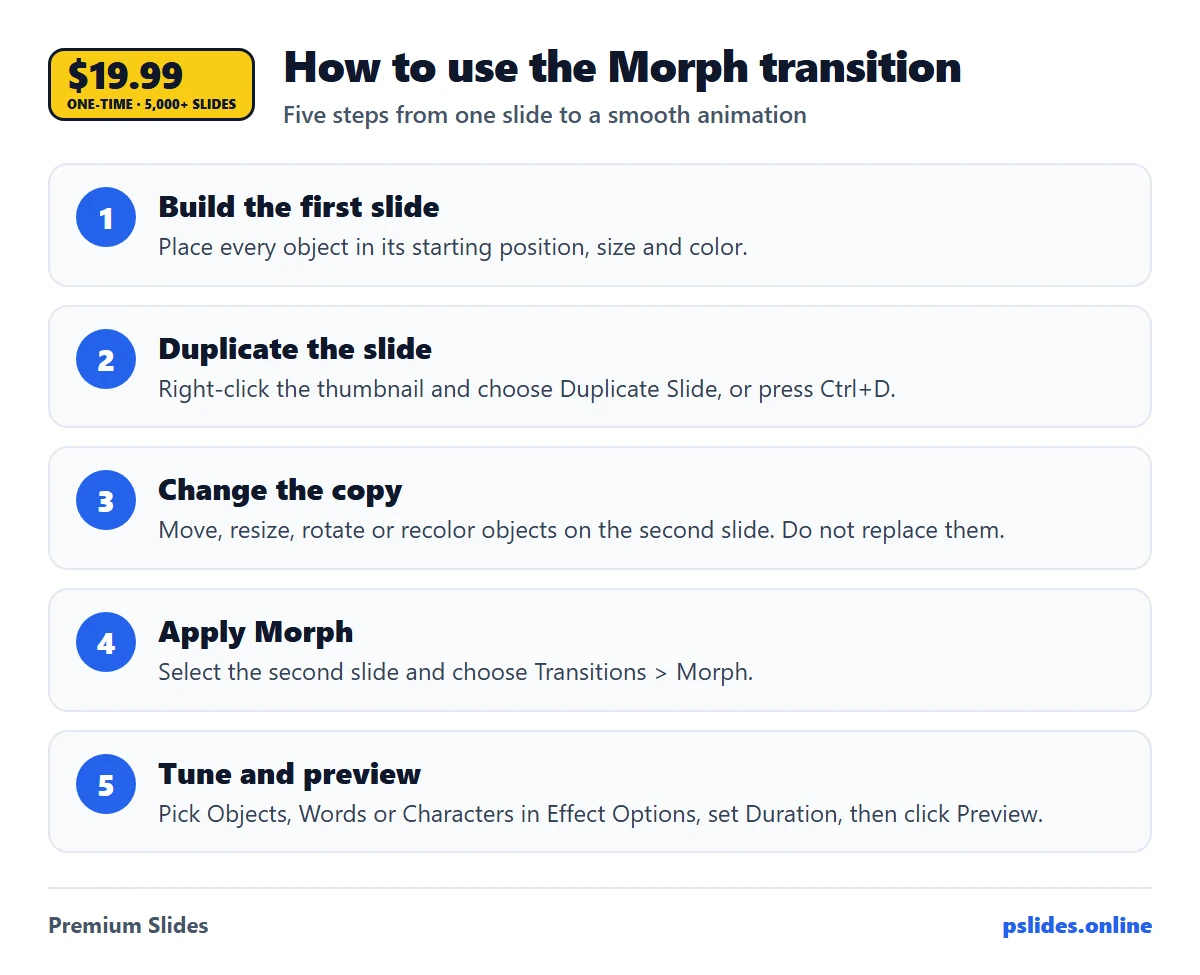
Step 1: Build the first slide
Place every object where it should start: shapes, pictures, icons, text. If something should fly in from outside, put it just off the edge of the slide on this first version.
Step 2: Duplicate the slide
Right-click the slide thumbnail and choose Duplicate Slide, or select it and press Ctrl+D. You now have two identical slides.
Step 3: Change the copy
On the second slide, move, resize, rotate or recolor the objects. Drag the title to a corner, make a picture fill the slide, turn a shape 90 degrees. Do not delete an object and draw a new one, because a new object will not match the old one.
Step 4: Apply Morph
Select the second slide and go to Transitions > Morph. A transition always plays as you arrive on a slide, so Morph belongs on the slide you are moving to.
Step 5: Tune and preview
Open Effect Options and choose how Morph matches content:
- Objects. The default. Shapes, pictures and whole text boxes move as units.
- Words. Matching words travel to their new place in the text. Good for reordering a phrase.
- Characters. Matching letters travel. Good for turning one word into another, such as an anagram.
Set the Duration in the Timing group. As a rule of thumb, 1 to 2 seconds feels smooth without slowing your talk. Click Preview to watch it, then repeat the process to chain several slides.
How does Morph decide which objects match?
Morph matches objects of the same type that it can trace from one slide to the next, which in practice means copies of the same object. When it cannot find a match, the old object fades out and the new one fades in.
You can force a match by naming. Open the Selection Pane with Home > Arrange > Selection Pane or Alt+F10. Double-click an object's name on the first slide and rename it starting with two exclamation marks, such as !!logo. Give the object on the second slide exactly the same name. Morph now treats them as one object, even if you redrew it or swapped the picture.
Naming also helps when two similar shapes match the wrong way round and cross over each other. Name each pair and the paths straighten out.
When should you use Morph instead of animations?
Use Morph when something moves, grows or reorganizes between two views. Use classic animations when items appear one by one on the same slide or need exact timing. They work well together: Morph to move between views, then animations to reveal the details.

Morph has one more advantage: the slides stay simple. Each slide is a finished picture, so a colleague can edit it without decoding a long animation list. For the other side of the toolkit, see our guide to animating in PowerPoint without overdoing it.
What can you do with the Morph transition?
The most useful Morph effects are zooms, moving highlights, reveals and smooth agenda changes. Here are six ideas that work in business and class decks.
- Zoom into a detail. On the second slide, enlarge a map, chart or screenshot so the part you want fills the screen. Morph creates a camera zoom. Map slides, such as the world map templates, work well for this.
- Walk along a timeline. Make one step large and colored and the others small and grey, then move the highlight one step per slide. Our guide on making a timeline in PowerPoint covers the layout.
- Move the agenda highlight. Keep the agenda on the side and slide a colored bar to the current section.
- Turn a cover into a content slide. Shrink the big title into a header and let the photo slide to one side.
- Rotate a product or 3D model. Turn the model on the second slide and Morph spins it.
- Rewrite a phrase. With Effect Options set to Words, "Fast but expensive" can rearrange itself into a new message.

Why is Morph not working in PowerPoint?
Most problems come from four things: Morph is on the wrong slide, the object was redrawn instead of copied, the objects are different types, or the version cannot play Morph.

- Objects fade instead of moving. They do not match. Copy the object from the first slide and paste it on the second, or rename both with the
!!prefix. - Text jumps instead of flowing. Set Effect Options to Words or Characters.
- A shape turns into a picture. A shape and a picture are different types. Morph will cross-fade them, not reshape one into the other.
- It works on your laptop but not in the room. The presenting computer probably runs an older version. Export a video with File > Export > Create a Video as a backup.
Morph also respects the slide master. If a logo or header sits on the master, it stays still while the content moves, which is usually what you want. Our guide on how to use Slide Master explains how to set that up.
Where can you find Morph transition PowerPoint templates?
Look for decks built as pairs or sequences of slides that share the same objects, so Morph has something to match. Infographics with a central hub, step diagrams and timelines are the easiest to adapt, because each slide can show the same pieces in a new arrangement.
Building those sequences by hand is the slow part: drawing a polished diagram, then three variations of it that line up exactly. Premium Slides is a bundle of 5,000+ animated, fully editable slides for PowerPoint, Google Slides and Keynote. It includes animated creative infographics like the hub and timeline slides above, animated diagrams and animated infographic sets, so you can duplicate a slide, rearrange the pieces and add Morph. The whole bundle costs $19.99 once, with instant download and lifetime access. You can get the bundle here or browse every template category first. For general design rules that keep motion classy, read how to make PowerPoint look professional.
Frequently asked questions
What is the Morph transition in PowerPoint?
Morph is a transition that animates objects from their position, size, color and rotation on one slide to their state on the next slide. Objects that appear on only one of the two slides fade in or out.
Is Morph available in PowerPoint 2016?
Only in PowerPoint 2016 that is part of an up-to-date Office 365 subscription. PowerPoint 2016 bought with a one-off payment does not have Morph.
How do you use the Morph transition?
Duplicate a slide, change the position, size or color of objects on the copy, then select the second slide and choose Transitions > Morph. Use Effect Options to choose Objects, Words or Characters.
Why is my Morph transition not working?
Usually Morph is applied to the first slide instead of the second, or the objects do not match because one was redrawn. Copy the object between slides or give both the same name starting with !! in the Selection Pane.
Does Google Slides have Morph?
No. Google Slides has no Morph transition. Keynote has a similar transition called Magic Move.
How long should a Morph transition be?
As a rule of thumb, 1 to 2 seconds. Shorter feels abrupt for big moves, and longer slows down your talk.